11 min read
How to Set Up a Google Business Profile That Gets You Found
 Written byThomas FitzgeraldFounder, Your Digital Team
SearchPublished 22 Sep 2026Updated
Want help putting this into practice? Explore our SEO services in Newcastle.
For many local businesses, your Google Business Profile is the first thing a customer sees. Sometimes it matters more than your website.
To set up a Google Business Profile, sign in to a Google account, go to business.google.com/create, enter your business name and primary category, add your address or service area, then your phone number and website, and choose a verification method. Google's help pages say customers can only find your profile once verification is complete, and that standard verification reviews take up to five working days. Once you are verified, fill in services, photos, hours and a description so the profile wins enquiries, not just a place on the map.
Turn these ideas into repeatable checks with our local SEO checklist.
Set it up properly and you give Google clearer signals. Set it up badly and you make it harder for customers to trust you, contact you, or even find you.
01. Why it matters
Local searches are decided quickly.
When someone searches for a service nearby, Google often shows the map pack before normal website results. Your profile controls much of what appears there: name, category, reviews, photos, opening hours, phone number, website link and directions.
That means your profile is not just a listing. It is a conversion page.
02. Set it up correctly
Start with the basics and do them precisely.
Use your real business name. Choose the most accurate primary category. Add secondary categories only where they genuinely fit. Use the same phone number, website and address format you use elsewhere online.
If you serve customers at their location, set your service areas properly. If customers visit you, make sure the address and opening hours are exact.
Then complete every field Google gives you. Empty fields are missed opportunities.
03. The fields businesses leave blank
The small details help customers decide.
Services, business description, products, appointment links, opening hours, holiday hours, attributes, photos and FAQs all matter.
Your description should explain what you do, who you help and where you work. Do not stuff it with keywords. Write for someone deciding whether to call you.
Your services should match the language customers actually search for. If you are a roofer, list roof repairs, flat roofs, leadwork and emergency repairs rather than hiding everything under “roofing”.
04. Photos, posts and Q&A
Activity builds trust.
Real photos help people believe the business is active. Add team photos, work examples, vehicles, premises, before-and-after shots and anything that proves you are real.
Posts can support offers, seasonal services and useful updates. Q&A lets you answer common buying questions before someone calls.
None of this replaces reviews or a good website, but it supports both.
05. Common mistakes
Most problems are avoidable.
Wrong categories, inconsistent phone numbers, missing services, old photos, ignored reviews, duplicate listings and keyword-stuffed names are the big ones.
The most damaging mistake is treating the profile as something you set once and forget. Local visibility needs upkeep.
06. Link it back to your site
Your profile and website should reinforce each other.
Link to the best page for the searcher, not always the homepage. If you run ads or track enquiries, make sure calls and forms can be measured.
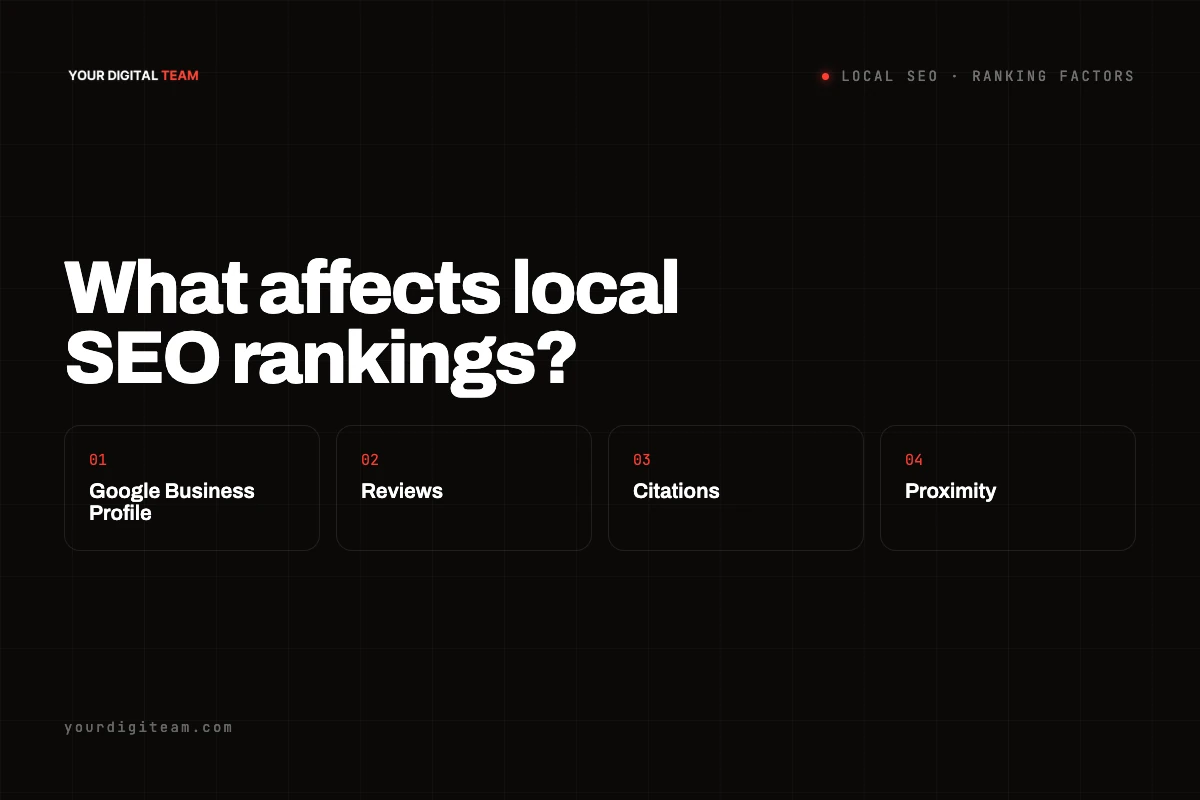
Already set up? Read what affects local SEO rankings next.
2026 update: how to set up a Google Business Profile, step by step
Before you create anything, search for your business on Google Maps. If a listing already exists, claim it rather than starting again, because a second profile for the same business is treated as a duplicate. If someone else already manages it, Google's duplicate profiles help page says you can request access and the current owner has 3 days to respond.
Then work through Google's own setup flow:
- Sign in to a Google account. Google suggests signing up with your business email domain if you are creating a new account, so the profile is not tied to someone's personal Gmail.
- Go to business.google.com/create and type your business name, or pick it from the suggestions. Use the name on your signage, vans and invoices.
- Choose your primary category. Pick the one that best describes what the business is, not everything it sells. You can add more later.
- Say whether customers can visit you. Choose Yes only if you have premises staffed during your opening hours, then enter the address or drop a pin on the map.
- Add your service area if you travel to customers. Google allows up to 20 service areas and recommends keeping the overall area within about 2 hours' driving time of your base.
- Add your phone number and website. Use a number that reaches this location directly, not a remote call centre, and link to the most relevant page on your site.
- Click Finish and choose a verification option. You can verify straight away or come back to it, but Google states that customers can only find your profile once verification is complete.
- Add your opening hours, plus special hours for bank holidays and Christmas, as soon as the profile is live.
- Invite your team. You can add managers by email address, so you are never locked out if one person leaves.
Hiding your address if you work from home
If you are a plumber, cleaner, electrician or mobile mechanic working from home, do not show your home address. Google's guidelines for representing your business give exactly this example: a plumber working from home should hide the address and set a service area instead.
If you skipped this during setup, you can change it later. Open your profile, go to Edit profile, then Location, and turn off "Show business address to customers". Your profile then shows only the service area. A business with a staffed shop or office that also travels to customers can show both.
Illustrative example: a home-based electrician in Bishop Auckland would hide the house address and list service areas such as Bishop Auckland, Durham, Darlington and Newton Aycliffe, staying well inside the 2-hour guideline.
Verification options and what to expect
Google picks the verification methods offered to you and, according to its verification help page, they cannot be changed. Some businesses are asked for more than one.
| Method | How it works |
|---|---|
| Phone or text | A code is sent to the business number. Automated phone menus cannot receive it. |
| You confirm through a link sent to an address you can access. | |
| Video recording | You film your location, signage or equipment, and proof you manage the business. |
| Live video call | A Google representative guides you on a call during your opening hours. |
| Postcard | A five-digit code is posted to your address. Google says most arrive within 14 days and codes expire after 30 days. |
Google says standard reviews take up to five working days, and occasionally longer. For video, plan what you will show before you press record: signage, a liveried van, tools.
Optimising your profile after setup
Setup gets you listed. These fields help Google match you to searches. For how the profile fits into wider rankings, see our guide to Google Business Profile and local SEO.
| Field | What to do |
|---|---|
| Categories | Google's guidance is to choose the fewest categories that describe your core business. You can add up to 9 beyond your primary category, but only where they are true. |
| Services | List each service as customers would search for it. Add prices if you are happy to show them. |
| Products | Google's edit help page says products are available in the UK. Use them for packages or key jobs, with a photo and a clear name. |
| Photos | Add a recognisable exterior or van photo, your team, and recent work. Replace old shots as the business changes. |
| Description | Google sets a limit of 750 characters and says not to include URLs or focus on promotions or prices. Say what you do, who for and where. |
| Posts | Share offers, seasonal jobs and project updates. Link each post to the matching page on your site. |
| Q&A | Answer common questions if the section appears in your dashboard. Google keeps changing how questions are shown on Maps, so keep your description, services and hours complete and accurate. |
| Reviews | Share your review link or QR code after each job and reply to every review, good or bad. Our guide on how to get Google reviews covers the asking part. |
Common problems and how to fix them
Verification is taking ages. If you are waiting on a postcard, do not edit your business name, address or category, and do not request a new code. Google says doing so invalidates the code in the post and makes the process longer. If the "Get verified" button reappears, Google could not verify you, so try again or use another method if one is offered.
Your profile has been suspended. Use the Google Business Profile appeals tool, which shows the reason and the policy involved. Upload evidence where the name and address match your profile, such as a business registration, licence or a utility bill. Google states that appeals can only be submitted once, so get your evidence together first. Do not create a new profile for the same business.
There is a duplicate listing. If you created a second profile by mistake, Google says you can remove it without affecting your verified listing. Check carefully which one you are removing, as removal deletes its content and managers. If you moved premises, update the address on your existing profile rather than making a new one.
Your profile is not showing. Check, in this order: is it verified, has it been marked as a duplicate, are recent edits still under review, and are you searching from inside your service area? A duplicate profile will not show on Search or Maps at all.
What not to do
Most suspensions trace back to breaking Google's guidelines for representing your business. Avoid these:
- Keyword stuffing the name. Google does not allow taglines, services, locations, phone numbers or opening hours in the business name. "Smith Electrical" is fine. "Smith Electrical Emergency Electrician Durham 24/7" (an illustrative example) is not.
- Virtual offices and PO boxes. Google says virtual offices are not eligible and PO boxes or remote mailboxes are not acceptable.
- Co-working desks without signage. These only qualify if the office has clear signage, receives customers and is staffed during opening hours.
- Call centre or tracking numbers that redirect. Use a local number under your direct control. Premium-rate numbers are not acceptable.
- Extra profiles for each town. Without a staffed shop or office, you get one profile with a service area.
- Categories used as keywords. Choose what the business is, not phrases you want to rank for.
If you would rather hand this over, our SEO service includes Google Business Profile setup and management. For the rest of your local groundwork, use our local SEO checklist.
Sources for this section: Create your Business Profile on Google (Google Business Profile Help), Guidelines for representing your business on Google (Google Business Profile Help), Verify your business on Google (Google Business Profile Help), Edit your Business Profile on Google (Google Business Profile Help), Resolve duplicate profiles and ownership issues (Google Business Profile Help), Appeal suspended or restricted Business Profiles (Google Business Profile Help), Google Business Profile Help: Tips to improve your local ranking on Google.
Frequently asked questions
Is a Google Business Profile free?
Yes. Creating, verifying and managing a Google Business Profile costs nothing, and you cannot pay Google to rank higher in the map results. The only costs are your own time, or an agency if you hand the work over.
How long does it take to verify a Google Business Profile?
According to Google's verification help page, standard reviews take up to five working days, and occasionally longer. If you are sent a postcard, most codes arrive within 14 days and expire after 30 days. Do not edit your name, address or category while you wait, as that can restart the process.
Can I set up a Google Business Profile without a shop or office address?
Yes. If you travel to customers, set up as a service area business and hide your address. Google allows up to 20 service areas and recommends keeping the overall area within about 2 hours' driving time of your base.
Can I use a virtual office or PO box for my Google Business Profile?
No. Google's guidelines say virtual offices are not eligible and PO boxes or remote mailboxes are not acceptable. A co-working space only qualifies if your office has clear signage and is staffed and open to customers during your hours.
Why is my Google Business Profile not showing on Google?
The usual reasons are that it is not verified yet, it has been marked as a duplicate, recent edits are still under review, or it has been suspended. A profile marked as a duplicate will not show on Search or Maps at all. Search for your exact business name first to check whether it appears.
Can I have more than one Google Business Profile?
Google allows one profile per business. If you have separate staffed locations, each one can have its own profile, but a service area business without premises gets one profile covering its service area. Creating extra profiles for each town you cover risks suspension.
A Business Profile is only one part of the picture, so once yours is live, work through our local SEO checklist to cover citations, reviews, local pages and tracking.
Thomas founded Your Digital Team to help businesses connect SEO, paid media, content and web development to measurable growth.
Meet Your Digital Team