7 min read
Website Migration Checklist: Before, During and After the Move
 Written byThomas FitzgeraldFounder, Your Digital Team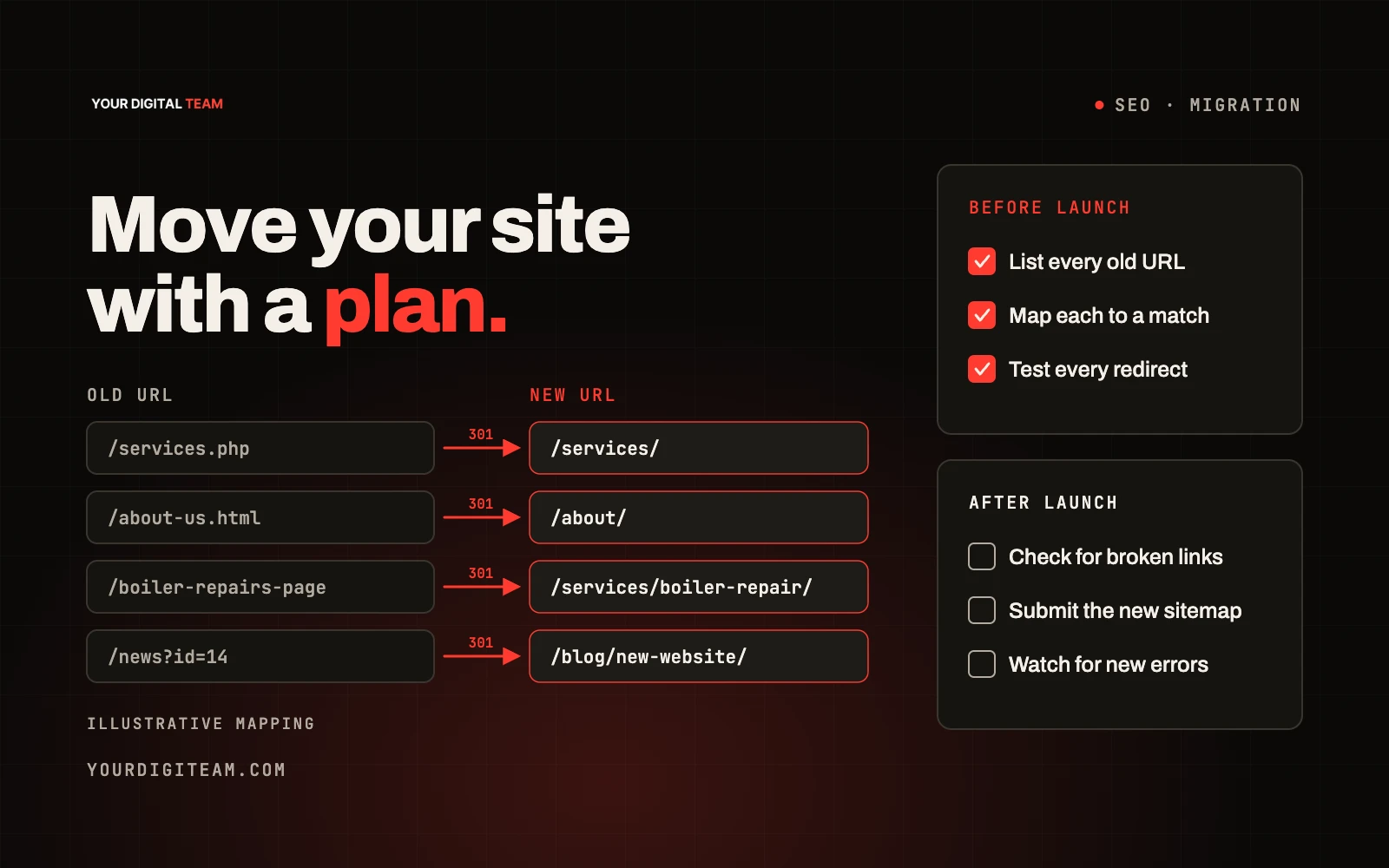
WebsitesPublished 4 Oct 2026
A website migration is any significant change to where or how your site lives: moving to a new domain, switching platform (for example from WordPress to Squarespace or Shopify), changing your URL structure, or moving from HTTP to HTTPS. The main risk is losing search visibility and breaking links customers rely on. The safeguard is careful planning: list every existing URL, map each one to its new home, set up permanent redirects, check the new site thoroughly before and after launch, and monitor for weeks afterwards.
This checklist is about the move itself. If you're still deciding whether to rebuild, see our guide to signs your website needs a redesign. If you're choosing a platform, our Squarespace vs Shopify comparison may help.
Know which kind of migration you're doing
Different moves carry different risks:
| Type of move | Example | Main risk |
|---|---|---|
| Platform change, same domain | WordPress to Squarespace | URLs change, pages lost |
| Domain change | oldname.co.uk to newname.co.uk | Signals must transfer to a new domain |
| URL structure change | /services.php?id=3 to /boiler-repair | Old links break |
| Protocol change | HTTP to HTTPS | Mixed content, missed redirects |
| Hosting change only | Moving servers, same URLs | Downtime, misconfiguration |
Google's documentation on site moves with URL changes explains that you may see ranking fluctuations while Google recrawls and reindexes a moved site, and that for medium-sized sites it can take a few weeks or more for new URLs to replace old ones in results. Plan for that rather than being surprised by it.
Before the move
1. Take a full inventory
- Export a list of every URL on the current site (from a crawler, your platform, your sitemap and analytics)
- Note the pages that bring in the most visits and enquiries
- Note pages with links from other websites
- Save copies of page titles, descriptions and main headings
- Record current performance: search traffic, top pages, enquiries per month
2. Take backups
- Full backup of the existing site, content and database where relevant
- Export of forms, customer data and orders if applicable
- Copies of images and documents
3. Build a URL redirect map
This is the most important document in the whole project. It's a spreadsheet with two columns: old URL and new URL.
Rules for a good map:
- Every old URL that matters goes to the most relevant new page, not just the homepage
- Pages you're deliberately removing go to the closest equivalent; if there's genuinely nothing relevant, a proper "not found" response is better than a misleading redirect
- Avoid chains (A to B to C). Redirect old URLs straight to their final destination
Worked example (illustrative):
| Old URL | New URL | Note |
|---|---|---|
| /services/boiler-repairs.html | /boiler-repair | Direct equivalent |
| /about-us.html | /about | Direct equivalent |
| /news/2019-van-launch | No redirect: 404 or 410 | Removed story with no relevant replacement |
| /index.php?page=contact | /contact | Legacy URL |
4. Prepare the new site
- Recreate or improve the content on key pages; don't let important pages disappear
- Set page titles and descriptions
- Check internal links point to new URLs, not old ones
- Set up forms and test them
- Install analytics and any conversion tracking
- Make sure the staging or preview site isn't indexable by search engines, and remember to reverse that at launch
5. Plan the timing
- Choose a quiet period for your business
- Make sure someone who can fix problems is available for several days afterwards
- If moving domain, check you have access to both the old and new domains' DNS and verification
During the move
6. Set up permanent redirects
Use permanent (301) redirects from old URLs to new ones. Google's guidance on redirects explains that permanent redirects tell search engines the new location should be shown, and its site-move guidance notes that 301 and other permanent redirects don't cause a loss of PageRank.
On hosted platforms such as Squarespace and Shopify, redirects are set in the platform's URL redirect settings. On self-hosted sites, they're usually set on the server or through a plugin.
7. Check canonical tags
Each indexable page should normally have a canonical pointing to its intended new URL, not an old one or the staging site. Preserve intentional canonical relationships for genuine duplicate pages. Google's page on consolidating duplicate URLs explains how canonicals work.
8. Update and submit your sitemap
- Make sure the new sitemap lists the new URLs only
- Submit it in Google Search Console
9. For domain changes: use the Change of Address tool
If you're moving to a new domain, Google Search Console has a Change of Address tool. You need to verify both domains and have redirects in place. Google notes it isn't the right tool for every move, such as switching between www and non-www or changing hosting without URL changes.
10. Update everything else that links to you
- Google Business Profile website link
- Social media profiles
- Directory listings
- Email signatures and printed material, when next reprinted
- Ad campaigns' final URLs
After the move
11. Test immediately
- Spot-check old URLs from your redirect map, especially top pages
- Confirm each redirects once, straight to the right page
- Submit test enquiries through every form
- Check the site on mobile and desktop
- Confirm analytics and conversion tracking are recording
12. Monitor for weeks, not days
- Watch Search Console for crawl errors and "not found" pages
- Add redirects for any old URLs you missed
- Compare search traffic and enquiries with your pre-move baseline
- Check which pages are indexed
Some fluctuation is normal. A steady decline, or key pages dropping out entirely, usually points to missing redirects, lost content or indexing problems. Our guide to GA4, dashboards and vanity metrics covers reading the numbers sensibly.
13. Keep redirects in place
Google recommends keeping redirects for as long as possible, generally at least a year. Don't remove them after a few weeks. Old links from other websites, bookmarks and printed material will keep sending people to old URLs for a long time.
Common mistakes
- Redirecting everything to the homepage
- Launching with the new site still blocked from search engines
- Forgetting images and PDF files that had their own URLs
- Dropping pages that brought in enquiries because they "looked old"
- Moving domain and platform and redesigning all at once, which makes problems harder to diagnose
- Letting the old domain expire after a domain change
Frequently asked questions
Will I lose rankings when I migrate? Fluctuations are common while Google processes the move. A well-planned migration with complete redirects reduces the risk of lasting loss, but no one can guarantee there'll be no change.
How long should I keep the old domain after a domain change? Keep it registered and redirecting for the long term. Letting it lapse breaks every old link and could let someone else register it.
Can I migrate a small site myself? Yes, if you follow a checklist like this carefully. The redirect map and post-launch checks are the parts not to skip.
Should I change my content during a migration? Improving content is fine, but big changes to URLs, design and content at the same time make it harder to spot the cause of any problems.
Need a hand with the move?
We plan and carry out migrations as part of our web development work, including redirect mapping and post-launch monitoring. Get in touch if you'd like help.
Sources
- Google Search Central — Site moves with URL changes
- Google Search Central — Redirects and Google Search
- Google Search Central — Consolidate duplicate URLs (canonicals)
- Search Console Help — Change of Address tool